Laravel PHP Licenser & Updates Manager - REST API, webhooks, customer portal
Slack Notifications
PluginSlack Notifications Plugin for Botble CMS
The Slack Notifications Plugin enables Slack integration for your Botble CMS store. It allows sending real-time notifications specifically for new orders and new customer registrations to your team members.
[!IMPORTANT]
This plugin focuses exclusively on notification delivery. It does not handle order fulfillment, payments, or inventory updates.
📍 Plugin Location
After installation and activation, access the plugin settings in your Botble Admin panel under:
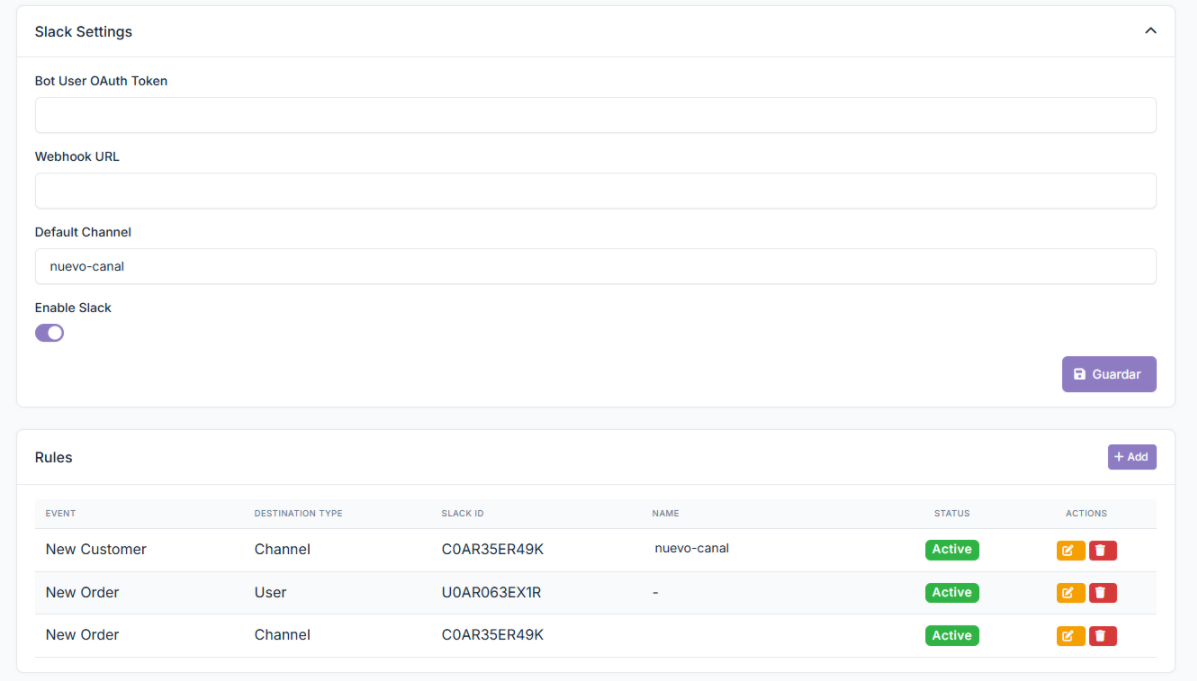
Settings → Slack
Here you can configure Slack tokens, select channels or users, and define notification rules for each event.
🚀 Current Plugin Scope
✅ Functionality
- Event-Based Notifications: Supports
New OrderandNew Customerevents. - Destination Selection: Send notifications to public channels, private channels, or direct messages.
- Dynamic Rules: Each event can have multiple active rules with customized message templates.
- Template Variables: Use variables like
{{order_id}},{{customer_name}},{{total}}in messages. - Logging: Debug logs capture all Slack notifications for troubleshooting.
❌ Limitations
- Does not create orders or trigger fulfillment actions.
- Users cannot manually post messages through the plugin unless a User OAuth Token is provided.
- Notifications rely on the bot being a member of channels for full functionality.
⚙️ Slack Integration Steps
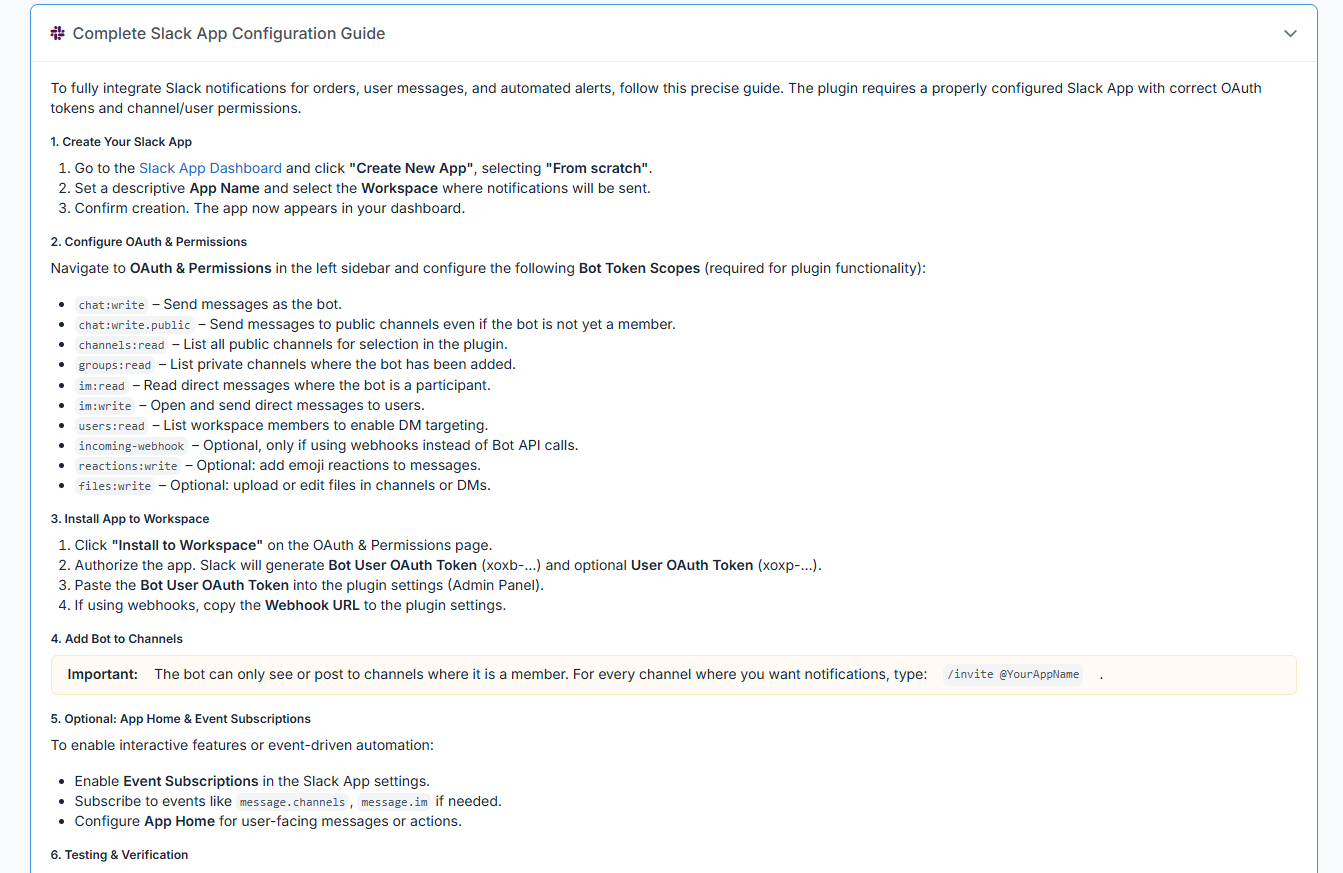
1️⃣ Create Your Slack App
- Go to the Slack App Dashboard and click Create New App → From scratch.
- Set a descriptive App Name and select the workspace where notifications will be sent.
- Confirm creation; your app will appear in the dashboard.
2️⃣ Configure OAuth & Permissions
At a minimum, configure the following Bot Token Scopes:
| Scope | Purpose |
|---|---|
chat:write |
Send messages as the bot. |
channels:read |
List public channels for selection. |
groups:read |
List private channels where the bot is added. |
im:write |
Send direct messages to users. |
users:read |
List workspace members for DM targeting. |
Additional scopes may be added by the user if needed.
3️⃣ Install App to Workspace
- Click Install to Workspace and authorize the app.
- Slack generates a Bot User OAuth Token (
xoxb-...). - Paste the Bot User OAuth Token into the plugin settings.
4️⃣ Add Bot to Channels
Important:
The bot can only post to channels where it is a member. Invite it using:
/invite @YourAppName
5️⃣ Testing & Verification
- Send a DM → bot must deliver the message.
- Send to a public channel → bot must be a member.
- Send to a private channel → bot must be invited.
- Check tokens if messages fail.
📦 Message Rules & Template Variables
Rule Configuration
- Each rule specifies:
- Event:
New OrderorNew Customer - Destination Type: Channel or User
- Destination ID: Slack channel or user ID
- Message Template: Supports variables
- Status: Active or Inactive
- Event:
Available Template Variables
| Variable | Description |
|---|---|
{{order_id}} |
Order ID |
{{status}} |
Order status |
{{created_at}} |
Timestamp of event |
{{customer_name}} |
Customer full name |
{{customer_email}} |
Customer email |
{{customer_phone}} |
Customer phone |
{{total}} |
Order total |
{{currency}} |
Currency symbol |
📊 Admin Panel Table Overview
The plugin provides a table view for all rules:
| Event | Destination Type | ID | Name | Status | Actions |
|---|---|---|---|---|---|
| e.g., New Order | Channel | C12345 | #sales | Active | Edit/Delete |
🔒 Security & Scope Reminder
- Messages are sent only via the Bot User OAuth Token.
- Users cannot post manually unless a User OAuth Token is provided.
- Direct messages, public channels, and private channels require the bot to be invited and proper scopes to be set.
For more details:
🛠️ Botble CMS Requirements
- Botble Core: 7.0.0+
- Ecommerce Plugin: Installed and active
- HTTPS: Required for secure communication
- Slack App: Must have Bot Token and required scopes
🐞 Debug Mode
- All notifications are logged for auditing and debugging.
- Use logs to troubleshoot channel/user delivery and OAuth issues.
⚠️ Important Notes
- Invite the bot to all target channels to ensure notifications work.
- Test each event type after configuration before going live.
Leave a comment
Your email address will not be published. Required fields are marked *